
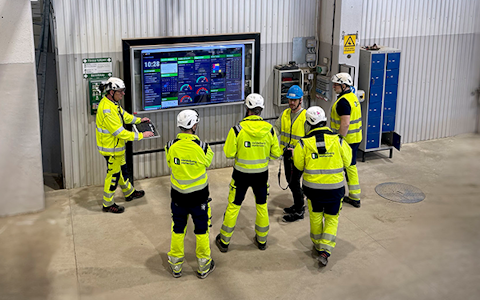
Digital dashboards that help you identify deviations and make the right decisions.
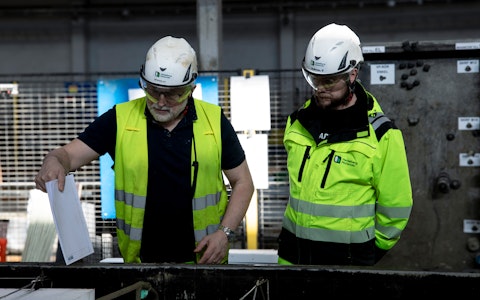
Capture your deviations and turn them into improvements
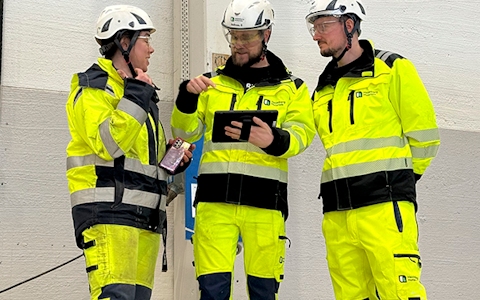
Continuous improvement, Kaizen boards, PDCA and other tools.
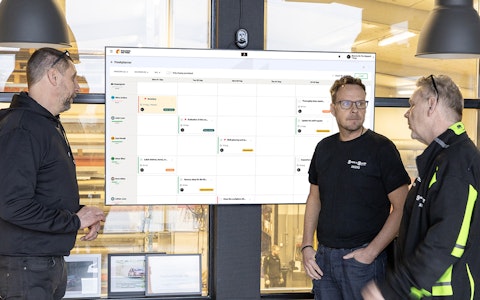
All your team’s tasks, neatly organized in one weekly view.
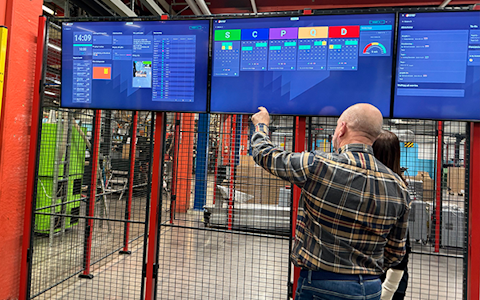
Improve key performance indicators within your specific focus areas with our SQCDP board.
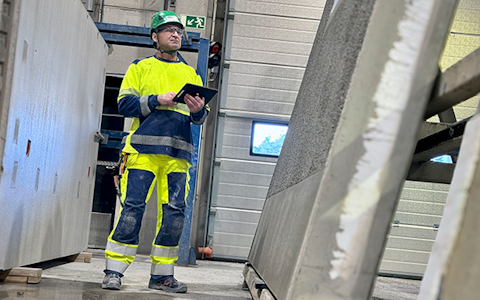
Use the PDCA cycle as a tool to improve both quality and processes
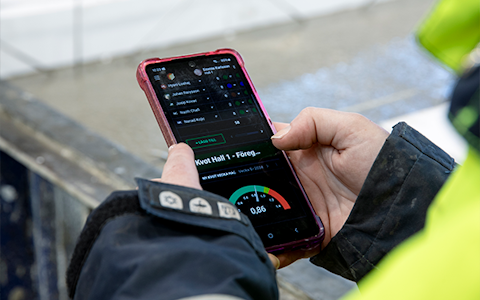
Digital tools for 5S work, recurring audits, and a well-organized workplace.
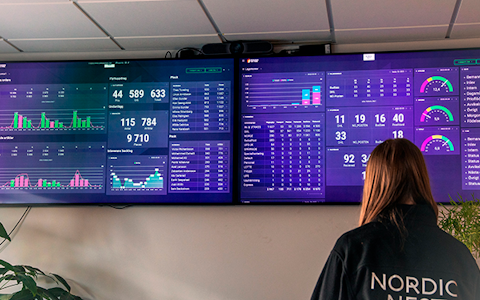
Visualize KPIs and communicate effectively throughout the entire organization.
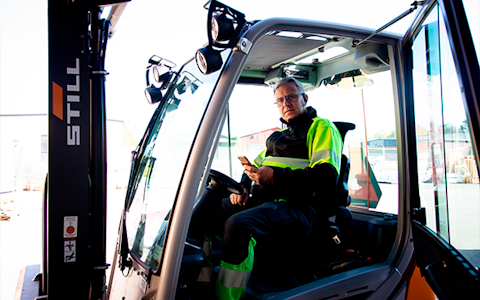
Basic project management and activity boards.
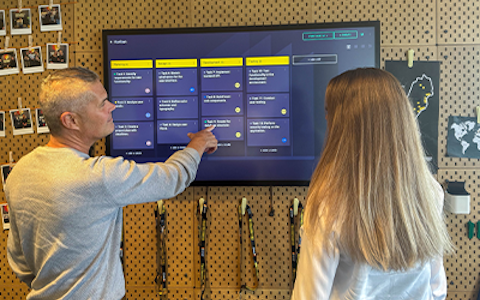
Kanban is a powerful method for visualizing, managing, and optimizing workflows.

Digital dashboards for takt time flow with takt time counter and stop time log.
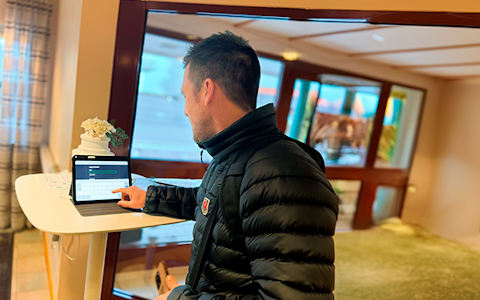
Digital visitor registration provides full control over all planned and executed visits to your business.
Integrate the IA System with Boards on Fire – take Control of your HSE Deviations
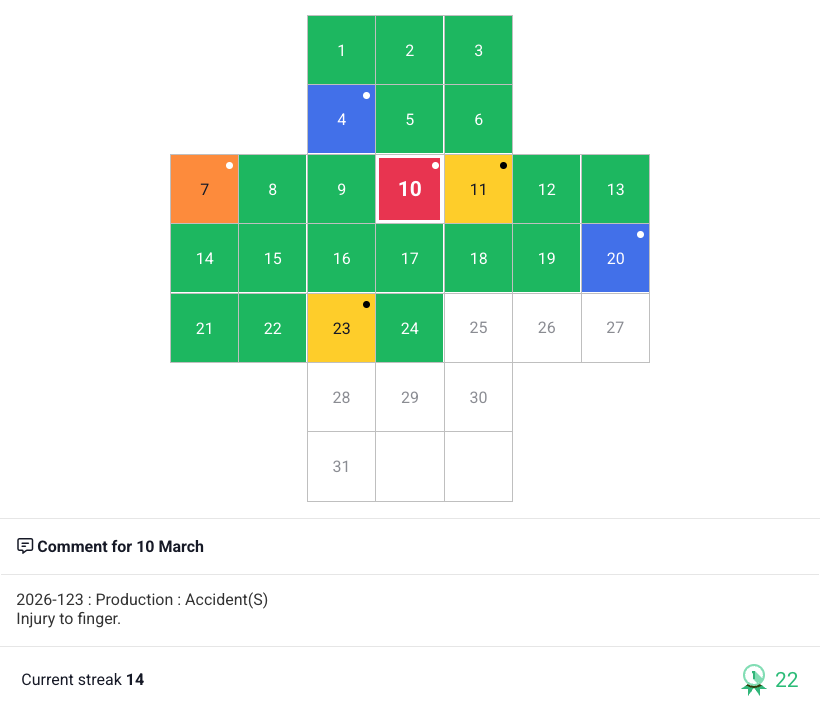
Managing deviations should be simple, efficient, and a natural part of daily improvement work. By integrating the IA system (Information System for Work Environment) with Boards on Fire, you get a full overview of reported events - directly on your digital management boards.
Less manual work. When a deviation is reported in the IA system, it is automatically transferred to the correct board in Boards on Fire.
Faster response. Teams see what's happened right away and can take immediate, concrete action without anything falling through the cracks.
Everything in one place. With visualization and follow-up integrated into your daily workflow, deviation management becomes more dynamic and effective.
In this guide, we walk through how the integration works, what is required to get started, and how to get maximum value from the connection.
The integration means that HSE (Health, Safety, and Environment) deviations reported in the IA system are automatically sent to Boards on Fire and displayed on your boards. This makes work environment management a natural part of daily operations, without the need for manual follow-up.
Data is fetched automatically every 15 minutes. Each sync looks back seven days in IA to ensure the information is always up to date.
We do not collect personal information or other sensitive data from the IA system. The information imported into Boards on Fire is limited to:
For the connection to work, you first need to create an API key in the IA system.
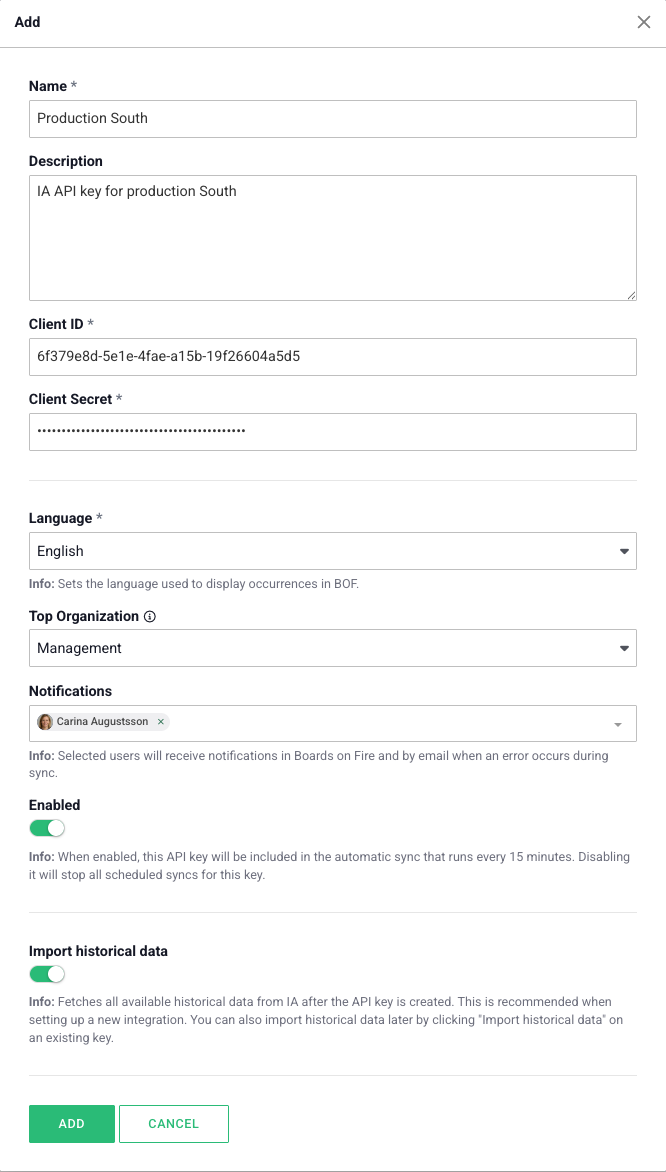
Follow these steps to activate the connection in the BoF interface:
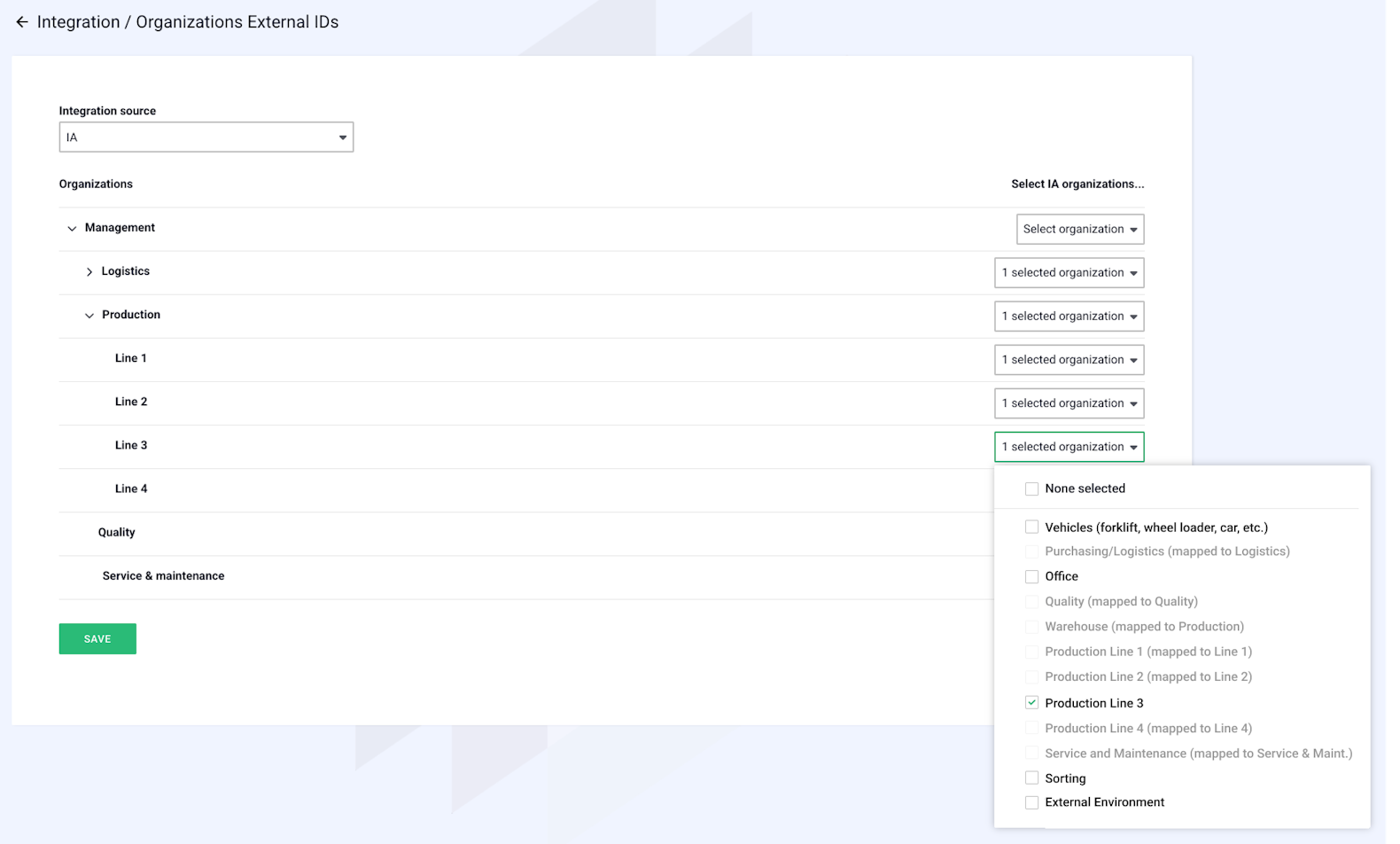
To ensure information lands in the right place, IA organizations must be mapped to your organizations in BoF.
Our integration does not fetch personal data or sensitive information. To ensure we never access more data than necessary, a key with limited access is used. This limited access key excludes: the event types Occupational Disease and Harassment/Discrimination, as well as all events marked with restricted access. Attachments are also excluded.
The limited access key also excludes the following fields for all event types:
Free web demo