
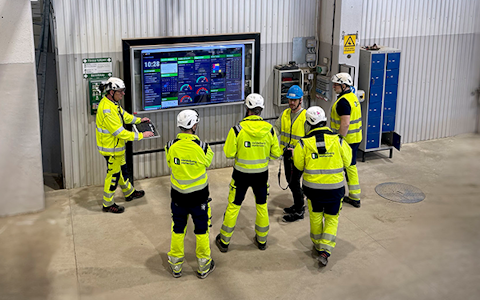
Digital dashboards that help you identify deviations and make the right decisions.

Capture your deviations and turn them into improvements

Continuous improvement, Kaizen boards, PDCA and other tools.
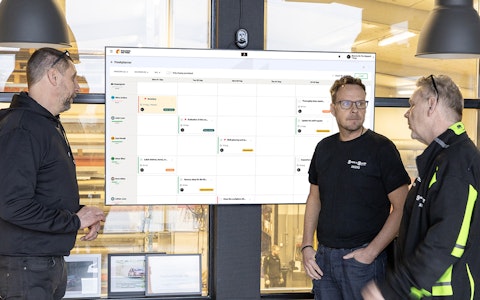
All your team’s tasks, neatly organized in one weekly view.
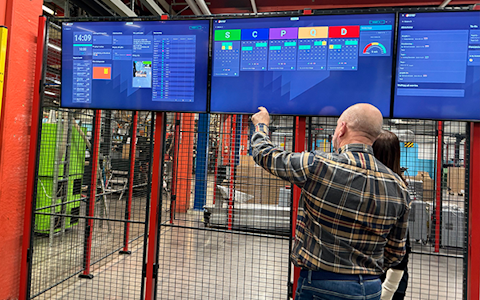
Improve key performance indicators within your specific focus areas with our SQCDP board.

Use the PDCA cycle as a tool to improve both quality and processes
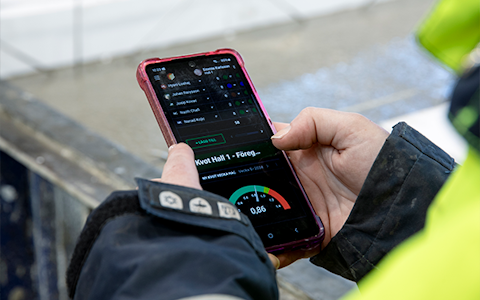
Digital tools for 5S work, recurring audits, and a well-organized workplace.
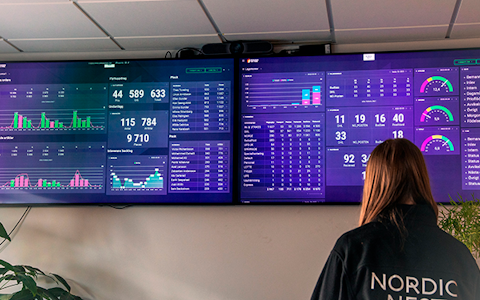
Visualize KPIs and communicate effectively throughout the entire organization.

Basic project management and activity boards.
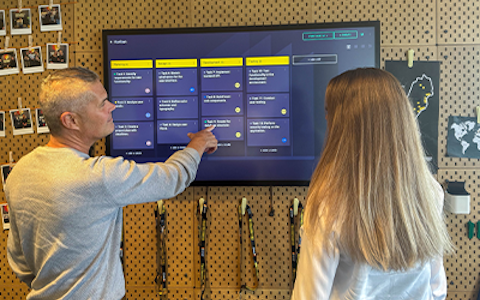
Kanban is a powerful method for visualizing, managing, and optimizing workflows.

Digital dashboards for takt time flow with takt time counter and stop time log.
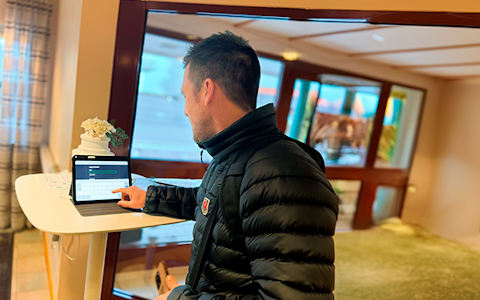
Digital visitor registration provides full control over all planned and executed visits to your business.
One of the most flexible solutions our platform offers is what we have named entities. You can easily create and use them to manage everything from activity lists to projects in Boards on Fire. In this video, we will go through a few different examples of how they can be used. Entities are most often used in a dashboard with an entity component or focused on an activity board. Their strength lies in the flexibility and that information can be delegated or escalated in real-time.
This is an activity list with fields of information that are necessary to manage activities at a customer. An activity can easily be escalated up a level if the team cannot handle it themselves.
This is a list for managing material shortages, and it can be shared between both production and purchasing so that everyone is aware of the situation and can follow up on the cases.
Simpler projects are excellent to manage in Boards on Fire, where you can easily visualize how things are going and who in the respective team is to perform subtasks. A GANTT view helps you get a clear timeline on all projects and subtasks.
The Kanban board is another type of view on your entities, where each row becomes a movable card. This can easily be built up to, for example, move orders between stations or flows, similar to what we see here.
These were four different examples of areas of use, and it is really only you who set the limit for what an entity can do and what information it handles.
To create an entity, go to the entities tab in the administrator interface.
Then click on "add" up in the right corner to create a new entity.
First, you get to choose a name for your entity, as well as which type it should be.
A standard entity can be used in all contexts while the other types automatically create up some fields when setting up the entity.
When you have added your entity, you first get the opportunity to add a display name and a description. These do not have to be filled in and can be changed afterwards. If you want to delegate or escalate the information handled in this entity, check the function to delegate rows.
Under the tab "fields", you can create your fields that are to be used on the boards to input and hold information.
A field is thus used to store information, and it can only contain data of a certain type, which you decide by choosing the field's data type.
Press "add" and then "fields" to add a standard field.
You can now fill in a key for your field, as well as a display name. Thereafter, you choose which data type the field should be.
With a "Boolean", the field becomes a button that can be off or on. It can also be visualized as a box that is checked or unchecked. In the settings on a component, a Boolean field can get the default value on or off.
The data type "Date" lets the user choose a date from a calendar. In the component's settings, it is possible to hide dates in summation and to choose a default value.
"Date time" works roughly the same, except that the user can add a time of day. In the component's settings, it works the same as for regular date fields.
With the data type "Entity", you can create your own dropdown list that the user can choose from. In the settings on a component, an entity field can get a default value. You can also choose how the list should be sorted, be searchable, and whether new options should be able to be added or not.
The data type "Files" lets the user attach files in the entity. Fields of this type have no further component settings besides write-protection and width.
In a field of the type "Images", a user can attach images in the entity. Also for image fields, it is only possible to write-protect the field and determine the column width in a table.
In a field of the type "Number", only digits can be entered. In the settings on a component, you can also here choose a default value, if the number values should be treated as numbers or time, as well as in which unit the value should be shown.
A field of the type "Organization" lets the user choose from a list of your organizations. Also for organizations, you can choose a default value in the component's settings.
The data type "Richtext" gives you the opportunity to fill in large amounts of text in different formats as well as add images in a custom form. Fields of this type have no further component settings besides write-protection and width.
In fields of the type "Serial number", no data can be entered. Instead, every row that is created gets its own digit in counting order. There are no component settings for serial numbers besides width on the column in a table.
The data type "Status" lets a user choose a color in a list. To choose which colors are available and define what the respective color means, press to the right of the field and click on settings. Here you decide the rules for this status field and for which organizations it applies. Also for status fields, there is the possibility to put in a default value in the component's settings.
"String" fields are used primarily to enter short text, like serial numbers or simple comments. For this type of field, it is also possible to enter a default value.
"Text" fields are used when you want a little more space to write, without the text being hidden in a table or list, and unlike String, it has support for line breaks. For text fields, it is possible, like string fields, to choose a default value.
A field of the type "To do list" lets the user create subtasks in an entity. If a user gets assigned such a task, it is visible in their user profile, and they receive a notification. In the component's settings, it is only possible to write-protect the field and determine column width in a table.
A field of the type "User" lets the user choose from a list of your organization's users. In the settings of a field of the user type on a component, you can choose a default value as well as which organizations' users should be visible in the list.
Besides regular fields, you can also add calculated fields as well as kanban fields.
With a calculated field, you can automatically get a digit or status color depending on values of other fields. Here you first choose key and display name. You can then choose if a status color should be the result of the calculation or if a digit should be calculated.
If you choose "Kanban fields" under "add", the fields "position" and "kanban_columns" will automatically be added. To be able to use the kanban board, you just need to choose an existing or add, a so-called "simple entity" in the list.
You can under the tab "Access rules" choose how your entity may be used by different organizations. If you have data that not everyone should have access to in Boards on Fire, you can close access here.
Under the tab "Export", you can export all data that exists in the entity. Choose from which organizations and dates the data should be exported from, and in which format.
The tab "Usage" lets you get an overview of how much and where the entity is used.
When you have created an entity, you add an entity component on an overview board. There are several settings to make on the component. Under the tab general, you choose which entity is to be used in the component.
Under "Display mode", you can choose if the rows in the entity should be seen as a list or table. Table becomes an excel-like view and the list view becomes instead cards where you decide which information is visible per card. Which mode the component is set in determines from which organizations it fetches data. For example, you can aggregate data from underlying organizations or only see data that is entered in the current organization.
Do you want to know more about aggregation and mirroring? Peek at our video that deep dives into just that.
If you only want to show data in the component, you can easily write-protect it or hide the "Add”-button. It is also possible to choose how many objects may maximally be seen in the list.
If you have chosen "List" as display mode, you get under the tab "List settings" the opportunity to adapt the appearance of the list. For example, which of the fields should be seen as a header or if any field should be hidden in the list.
Under the tab "Fields", you can besides adjusting the settings for the existing fields also add one or several sorting fields to adapt how the list is sorted. Here it is also possible to lock a field to the left if the entity has many fields and needs to be scrolled sideways. You can also add "Virtual fields" which just like calculated fields can show a number that depends on other fields. It is a calculation that is either done with numerical values or time.
The tab "Filter" lets you adapt the component so that only rows that fulfill certain requirements are seen in the list or the table. This filtering is more or less fixed and can be used to sort away rows that have been marked as done, or if only prioritized cases that have the status color "red" should be seen.
Under the tab "Appearance", you can hide the component header and table footer, as well as show date navigation which gives you the opportunity to show rows or cards within a defined date range. In this example, we have chosen list view and activated the date navigation with "Date" as the date field to start from and the cards shall be shown during a span of 4 weeks. This is what that looks like.
When you press the three dots furthest to the right of a row, the usual functions for creating improvements and deviations exist, but also the editing mode. Here you can easily change or update information in the row. The archiving function archives a row, and it then disappears from this view and ends up in the archive.
An activity board behaves roughly like a large entity component. You can in an activity board show the rows in your entity as a table, an extended list with details over subtasks, a GANTT chart or as a Kanban board.
If you want to use the kanban view, you go to the board's settings and choose kanban under the tab "General". Under the tab "Kanban", you can then choose how the cards should look, just like when "List" is used as display mode for an entity component. The cards can easily be moved between columns through drag and drop.
Filtering: Up to the right there is a quick filtering function. Here you can easily filter on all fields in the entity, for example all projects with red status or all Lisa's tasks.
Archive: When a project or activity is finished, they are usually archived, and you reach the archive furthest up to the right on the three dots. Click on archive and the archive opens where all archived rows lie saved. It is possible to un-archive a row if the need exists. Click on close archive to return to the activity board.
Entities are thus a powerful and flexible function in Boards on Fire that can be adapted according to your specific needs – regardless of whether it is about managing projects, following up activities or visualizing flows. By combining the right field types, views and settings, you can create effective tools that support your daily work through the whole operation.
Free web demo
