
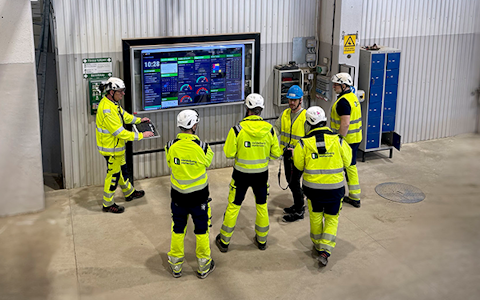
Digital dashboards that help you identify deviations and make the right decisions.
Capture your deviations and turn them into improvements
Continuous improvement, Kaizen boards, PDCA and other tools.
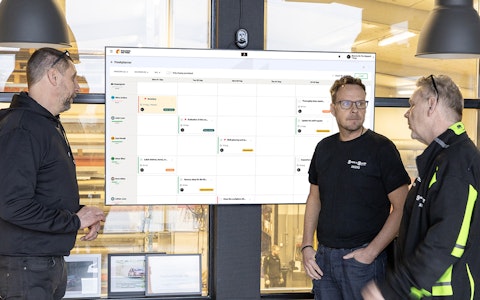
All your team’s tasks, neatly organized in one weekly view.
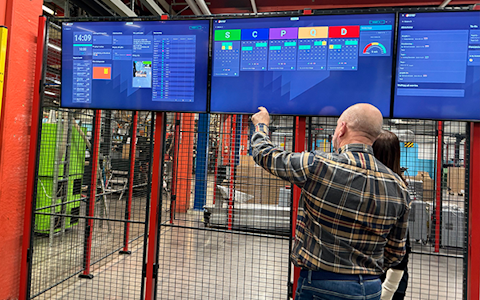
Improve key performance indicators within your specific focus areas with our SQCDP board.

Use the PDCA cycle as a tool to improve both quality and processes
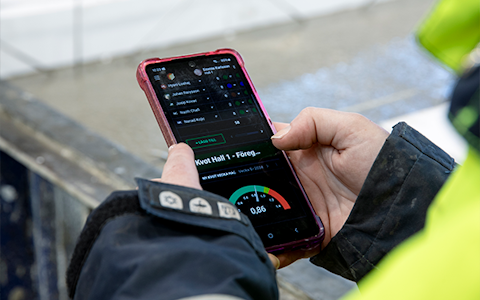
Digital tools for 5S work, recurring audits, and a well-organized workplace.
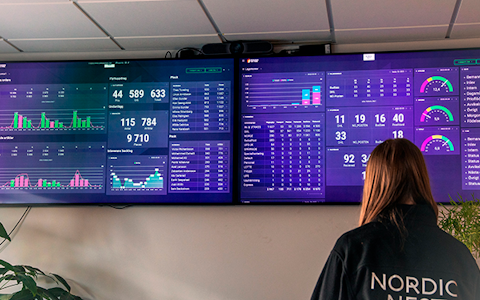
Visualize KPIs and communicate effectively throughout the entire organization.

Basic project management and activity boards.
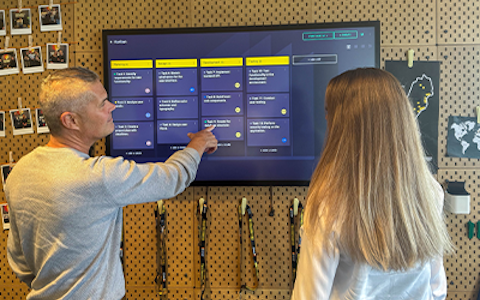
Kanban is a powerful method for visualizing, managing, and optimizing workflows.

Digital dashboards for takt time flow with takt time counter and stop time log.
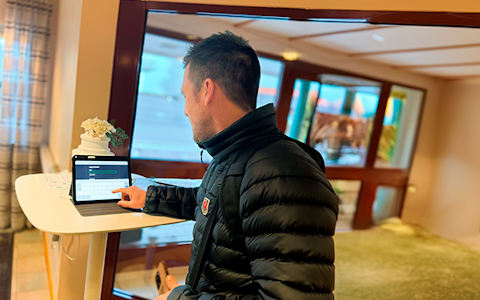
Digital visitor registration provides full control over all planned and executed visits to your business.
Resource Planning in Boards on Fire is about visualizing who should do what, when, and where. The purpose is to create a clear overview of your capacity and to be able to replan in time when changes occur. This means you gain insight into how your resources such as employees, machines, and stations are scheduled over time. You can create a living, easy-to-understand plan that is simple to adjust and that everyone can rely on every day.
Here are some things that are helpful to keep in mind when you start working with Resource planning in Boards on Fire.
Flexible setup:
You decide what counts as a resource. It can be, for example, employees, machines, or stations.
Displayed as a timeline:
The plan is shown in a calendar-like view where you can easily see workload per day or week if the data source is in day view. Like anything else in BoF, you can also follow it weekly, monthly, quarterly, or yearly.
Color coding & status:
Use colors to signal status such as Present, Other, and Absent. This provides a quick overview.
Start by considering which resources you want to plan, employees, machines, stations, or something else. Then create a data source in Boards on Fire to handle the background so you can build the Resource plan on one or multiple boards.
When creating your Resource planning, you need at least one of the following field types in your data source:
A Simple Entity is a custom dropdown list you define yourself, for example with your machines.
One of these fields is used as the fixed field in the Resource planning, the resource you are planning for, such as employees or machines.
In this example, we will create a Resource planning to manage staffing, and therefore we need to add the following fields in the data source with both display name and data type:
A Simple Entity is a dropdown list. Here, a new list is created to enter your stations. Once it’s created, click Edit to build the list with your options.
When the fields are set, save the data source.
Then go to the board where you want to display the staffing. Add the Resource Planning component, click Settings, and select the data source you just created. Choose a fixed field, here you specify which users should be shown in the component and then save the Resource planning. This is required, but there are more smart settings available.
As in most components in Boards on Fire, you can change the title. A useful tip is to include symbols representing the colors you use and define what they mean.
Organization settings work just like usual.
Select a default date, the date you want the plan to display by default. Leave it empty for the current date/week. Write, for example, +1 to show one day/week ahead, or –1 for one day/week back.
In the Fields tab, you can make specific settings for each field depending on the data type.
Let’s look at the settings for Status. Here you can change the display name and group fields together. Fields are shown automatically but can be hidden or read-only.
In this case, we want all employees to appear as green by default so that they only need to change the status when something deviates. You can use the default value function here and choose green.
You can always choose a default value for a field. In this case, select your Status field and set green as default. This way, the plan appears in green, and deviations are marked in other colors.
Virtual fields can be created in the data source and used in the Resource planning for calculations. Want to know more? See our video about Virtual fields.
Here you choose which field should remain fixed in the left column, and you can add or remove your resources. In this example, we add machines instead of employees.
In this tab, you can hide headings and show a table footer that summarizes your rows.
Choose whether the plan should be displayed per day or per week. You can also hide weekends if you don’t work then.
If you have a Status field in your Resource planning and want to show information on a management board, you can filter it. For example: show only machines that have a red status and are not running.
With Resource planning in Boards on Fire, you get a simple and visual way to plan staffing, machines, or other resources and quickly adapt when changes occur. With clear fields, color coding, and flexible display options, you gain an overview that everyone can rely on in their daily work.
Free web demo